
The complete COGS guide for Shopify merchants
If there's one number that determines whether your Shopify store is actually profitable, it's COGS — cost of goods sold. Everything else in your profit calculation builds on top of it.
Get COGS right and your profit reports, margin analysis, and pricing decisions all become trustworthy. Get it wrong — or worse, ignore it entirely — and you're running your business on guesswork. We've seen stores with 50%+ error rates in their COGS data. Not because they're careless, but because COGS is harder to track accurately than most people realize.
This guide covers everything: what COGS actually includes, how to calculate it for different business models, how to set it up in Shopify, and how to automate it so it's always accurate.
What COGS actually means (and what it doesn't)
Cost of goods sold (COGS) is the direct cost of producing or purchasing the products you sell. It's the money you spent on the physical goods that left your warehouse and arrived at a customer's door.
COGS includes:
- Purchase price from your supplier
- Inbound shipping and freight (getting products to you)
- Import duties and tariffs
- Manufacturing costs (if you make your own products)
- Packaging that's part of the product (not the shipping box)
COGS does not include:
- Outbound shipping to customers
- Payment processing fees
- Ad spend
- Shopify plan or app subscriptions
- Rent, utilities, or salaries
- Marketing materials
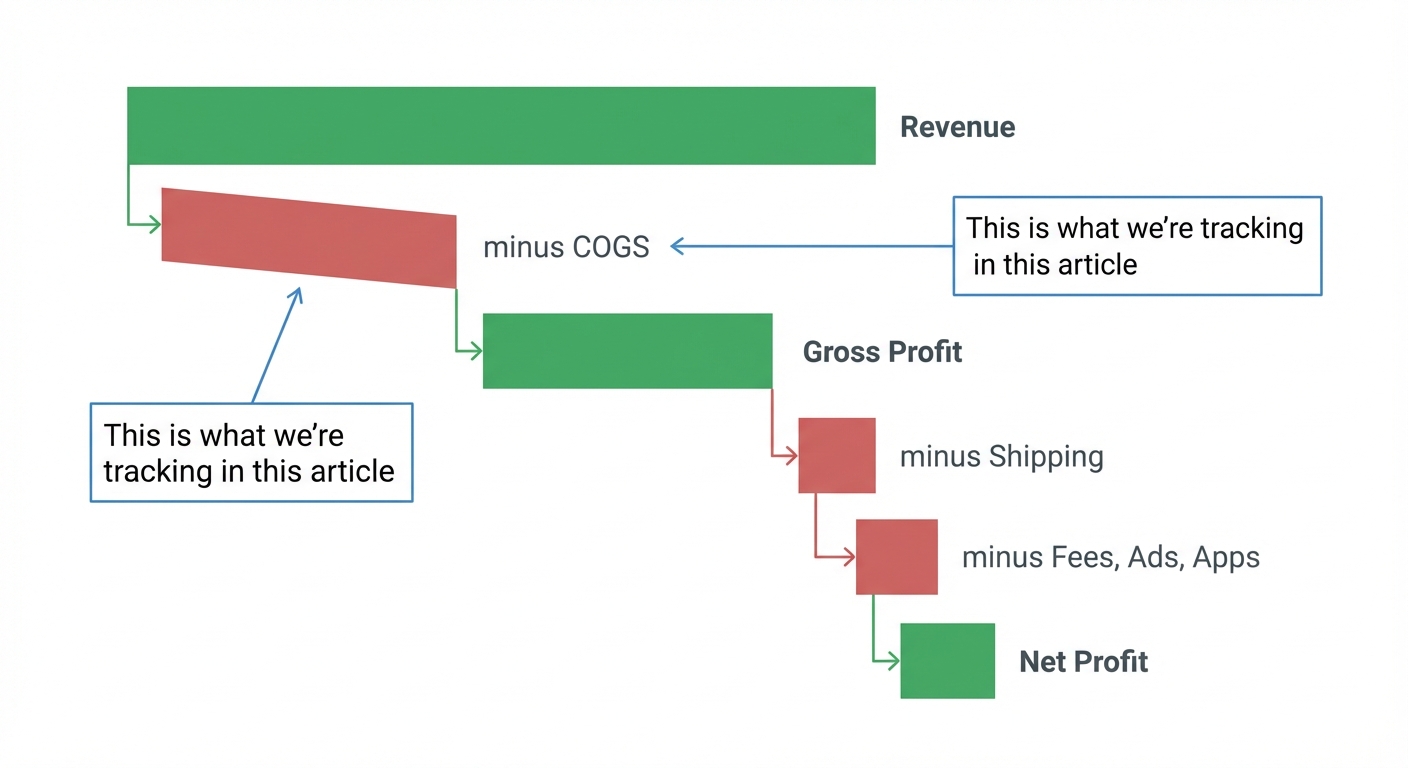
The distinction matters because COGS sits right at the top of your profit calculation. Revenue minus COGS equals gross profit — and gross profit is what pays for everything else in your business.
If your gross margin (gross profit ÷ revenue) is 60%, you have $0.60 from every dollar of sales to cover shipping, ads, fees, and all your overhead. If it's 30%, you have half that runway. COGS determines how much room you have to operate.
How to calculate COGS for your Shopify store
The formula depends on your business model.
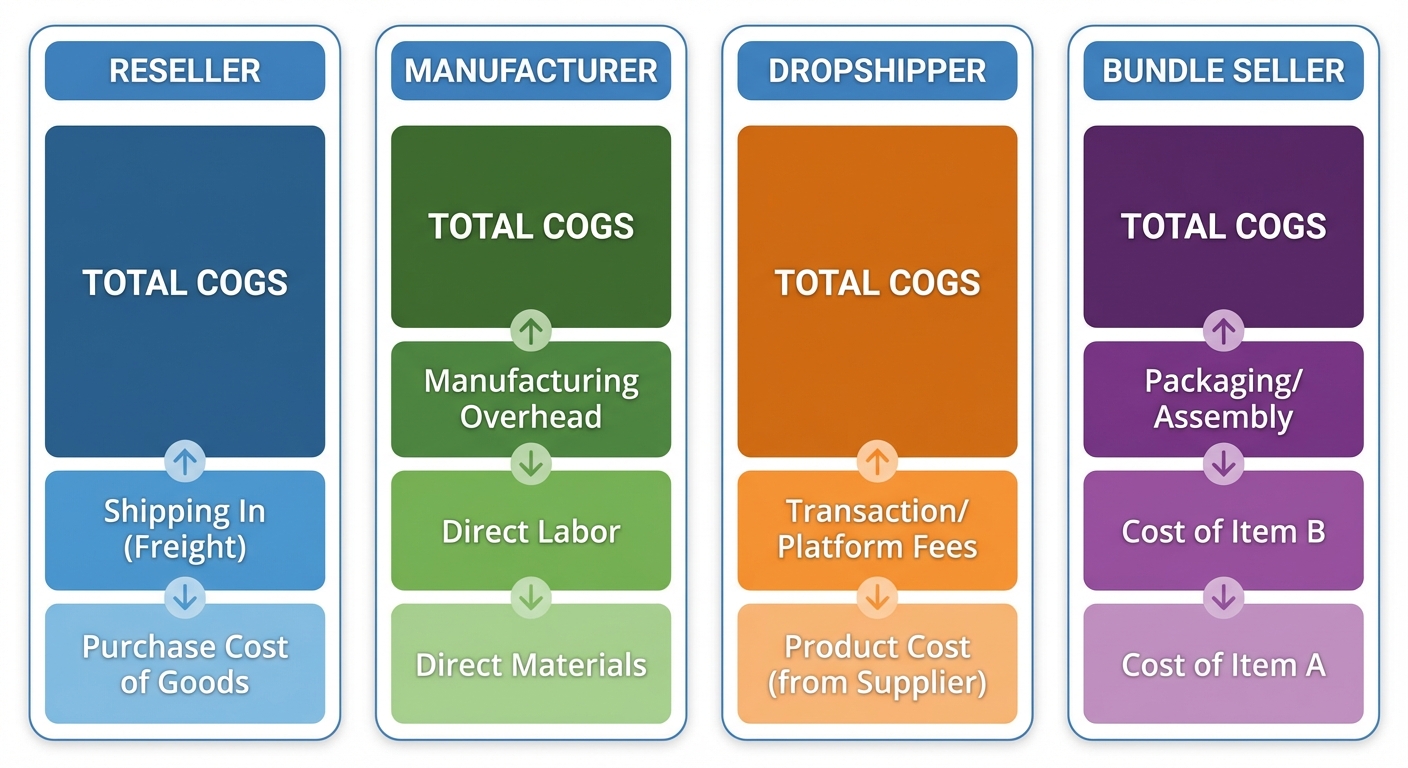
If you buy and resell products
This is the most common model for Shopify merchants. You order inventory from a supplier and sell it.
COGS per unit = Purchase price + Inbound shipping per unit + Duties per unit
Example: You buy a ceramic mug from a manufacturer in China.
- Purchase price: $4.20 per unit
- Shipping (sea freight, split across 500 units): $1.10 per unit
- Import duty (6.5% on ceramics): $0.27 per unit
- COGS per unit: $5.57
If you sell that mug for $24.99, your gross profit is $19.42 — a 77.7% gross margin. Healthy.
But if you only counted the $4.20 purchase price, you'd think your margin was 83.2%. That 5.5 percentage point gap might seem small — until you multiply it across thousands of orders.
If you manufacture your own products
Your COGS includes raw materials, direct labor (the people making the product), and manufacturing overhead directly tied to production.
COGS per unit = Raw materials + Direct labor per unit + Production overhead per unit
Example: You make handmade soy candles.
- Soy wax, wick, fragrance oil: $3.40
- Jar: $1.80
- Label printing: $0.35
- Direct labor (10 min at $18/hr): $3.00
- COGS per unit: $8.55
Notice we didn't include your studio rent or your website costs. Those are operating expenses, not COGS. COGS is specifically the cost of producing the product itself.
If you dropship
Dropshipping COGS is usually the simplest — it's the price your supplier charges per order, including their shipping fee to the customer.
COGS per order = Supplier product price + Supplier shipping fee
Example: You sell a phone case via a supplier on CJdropshipping.
- Product cost: $3.80
- Supplier shipping (ePacket): $2.50
- COGS per order: $6.30
With dropshipping, COGS and fulfillment cost are essentially the same thing. Your gross margin is usually lower (40-60%) because the supplier captures the manufacturing margin too.
If you sell bundles or kits
This trips up a lot of merchants. A bundle's COGS is the sum of COGS for each component — not an average, not an estimate.
Example: You sell a "Morning Routine" bundle containing a coffee mug ($5.57 COGS), a candle ($8.55 COGS), and a sample bag of coffee ($2.80 COGS).
- Bundle COGS: $16.92
If you sell the bundle for $49.99, your gross profit is $33.07 — a 66.2% gross margin. But if you'd guessed the COGS at "$12 or so," you'd overestimate your margin by almost 10 points.
How to set up COGS tracking in Shopify
Shopify has a built-in field for cost per item, but it's easy to miss — and most merchants either leave it empty or enter inaccurate numbers.
Step 1: Enter your cost per item
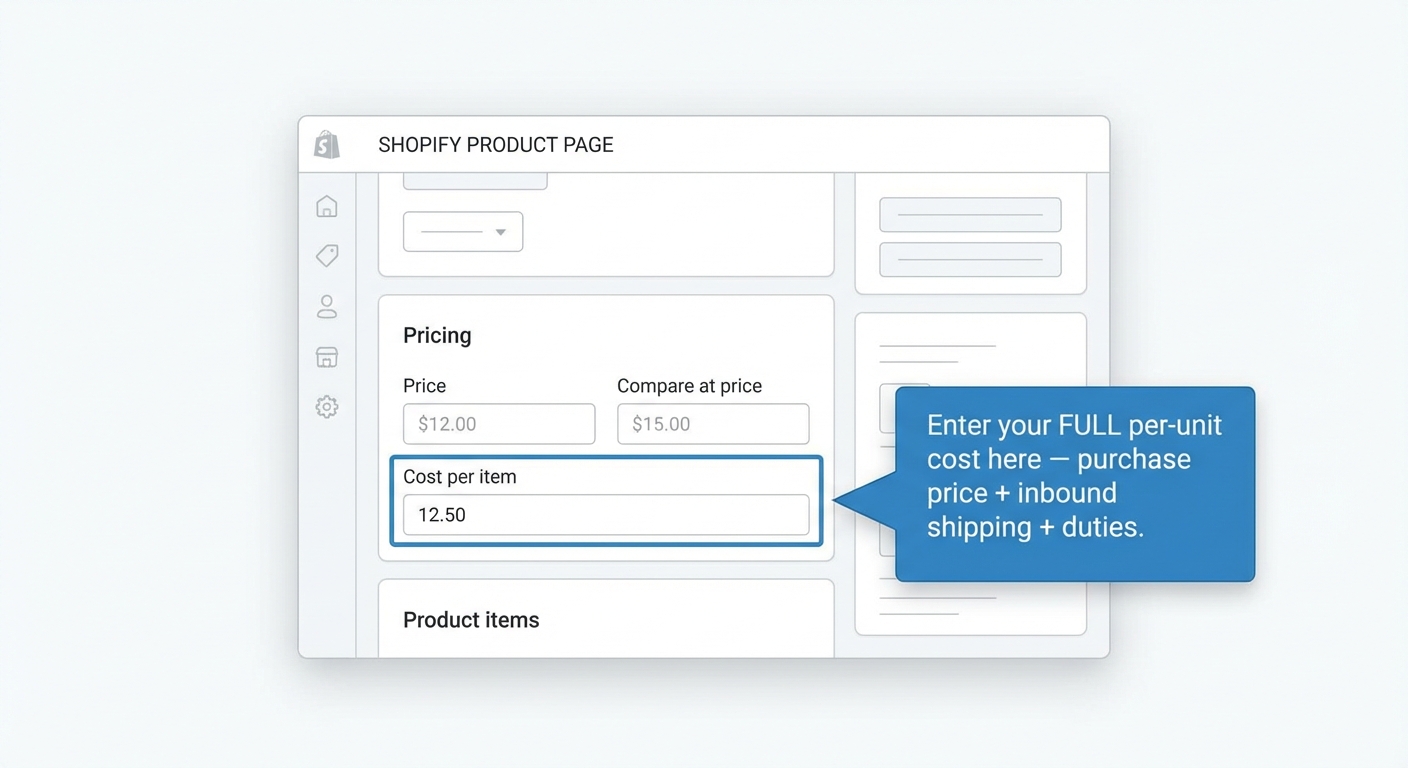
Go to Products in your Shopify admin. Open any product. Under the Pricing section, you'll see a field called Cost per item. This is where your COGS goes.
Enter the full cost — not just the supplier price, but including inbound freight and duties per unit. This is the number that feeds Shopify's built-in profit report.
For products with variants (size, color, material), each variant can have its own cost per item. This matters: your XL t-shirt might cost $1.50 more than your S. If you use one average cost across all sizes, your margins on each variant will be wrong.
Step 2: Handle variant-level costs
If you have variants with different costs, click into each variant and set its individual cost. This takes more time upfront but pays off in accuracy. A $2 cost difference across 5,000 units per year is $10,000 in profit reporting error.
Step 3: Check the built-in profit report
Once costs are entered, go to Analytics → Reports → Profit by product. This report shows gross profit per product based on the cost per item field.
It's a good start. But remember: this only shows gross profit (revenue minus COGS). It doesn't include shipping, processing fees, ads, or any other expenses. For that, you need a more complete solution.
Track this automatically
Shopimize shows your real profit per order, per product, per channel.
Try Shopimize free →The limitations of Shopify's built-in COGS tracking
Shopify's cost per item field works for basic COGS tracking. But if your business has any complexity, you'll hit walls quickly.
No automatic updates when supplier prices change. If your supplier raises prices by 8%, you need to manually update every affected product. Miss a few and your profit data is wrong for months without you noticing.
No support for landed cost. The cost per item field is a single number. There's no way to break it into purchase price, freight, and duties — which means you're doing that math elsewhere and entering the combined figure. If freight rates change (and they do, constantly), you need to recalculate and re-enter.
No currency conversion. If you buy in CNY or EUR and sell in USD, Shopify doesn't convert for you. You need to calculate the USD cost yourself, and it changes with exchange rates.
No bulk update tools. Updating COGS across 200+ products is tedious. You can use a CSV export/import, but it's error-prone. One wrong column mapping and you've overwritten your prices with your costs.
No connection to actual purchase orders. Shopify doesn't know what you actually paid your supplier for a given batch. You might have negotiated a 5% discount on your last order, but the cost per item field still shows the old price.
No weighted average costing. If you bought 500 units at $4.20 in January and 500 units at $4.60 in March (because shipping rates went up), what's your COGS? It should be the weighted average of what's actually in stock — but Shopify can't calculate that.
These limitations don't matter if you sell five products. They matter a lot if you sell 200.
Common COGS mistakes (and how to avoid them)
Mistake 1: Only counting the supplier price
The price on your supplier's invoice is not your COGS. Your COGS includes everything it costs to get that product to your warehouse, ready to ship. Inbound freight alone can add 15-25% on top of the purchase price for products shipped from overseas.
Fix: Create a landed cost formula for each product: supplier price + (freight ÷ units) + (duties × rate). Update it every time you place a new order with different terms.
Mistake 2: Using the same cost for all variants
Your supplier likely charges different amounts for different sizes, colors, or materials. An XXL hoodie costs more fabric than an XS. A leather wallet costs more than a canvas one. Using an average cost across variants makes some look more profitable than they are and others less.
Fix: Enter variant-level costs in Shopify. Yes, it's more work. But the accuracy difference compounds across thousands of orders.
Mistake 3: Never updating costs
Supplier prices change. Freight rates change. Currency exchange rates change. If your COGS was last updated six months ago, your profit data is fiction.
Fix: Review and update COGS quarterly at minimum. After any major cost change (supplier price increase, shipping rate change, new tariff), update immediately.
Mistake 4: Forgetting packaging in COGS
If custom packaging is part of your product (a branded box, a printed insert, a sticker), it's COGS — not overhead. A $0.80 branded box on 10,000 orders per year is $8,000 that should be in your cost calculations.
Fix: Add packaging cost per unit to your COGS formula. If packaging varies by product, track it at the product level.
Mistake 5: Confusing COGS with total cost
COGS is not the same as your total cost per order. COGS is the product cost only. Your total cost per order includes COGS plus shipping, processing fees, ads, and overhead. Mixing these up leads to confusion in your P&L.
Fix: Keep COGS and operating expenses separate in your tracking. Your P&L should show gross profit (revenue - COGS) and then net profit (gross profit - all other expenses) as distinct lines.
Automating COGS tracking
If you sell more than 20-30 products, manual COGS management becomes a maintenance burden. Here's what automation looks like:
Bulk import/export. Shopify allows CSV-based bulk updates to product costs. This works but requires careful column mapping and manual recalculation when costs change.
Supplier integration. Some apps connect to supplier feeds and can auto-update COGS when purchase prices change. This eliminates the "I forgot to update" problem.
Automated landed cost calculation. Tools like Shopimize let you set cost formulas that automatically factor in freight, duties, and currency conversion — so your COGS stays accurate even when exchange rates or shipping costs shift.
Real-time profit calculation. Once COGS is accurate and automated, your profit reporting becomes trustworthy. You can see gross margin per product, per order, and per day — without spreadsheets, without manual updates, and without guessing.
The goal isn't just to know your COGS. It's to trust it enough to make decisions on it.
COGS by industry: what's typical
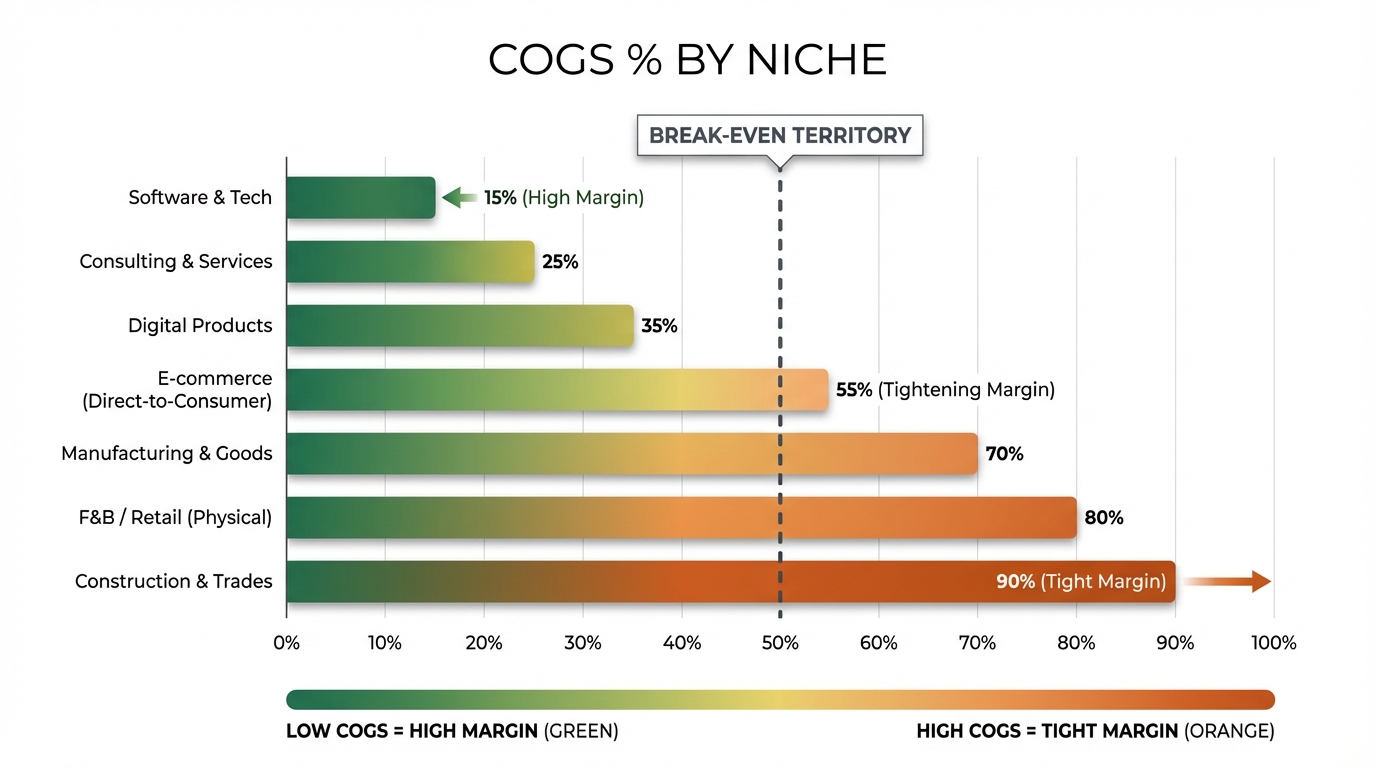
Knowing your COGS is one thing. Knowing whether it's competitive is another. Here are rough COGS-to-revenue ratios by common Shopify niches:
| Niche | Typical COGS % of Revenue | Gross Margin |
|---|---|---|
| Apparel (manufactured) | 30-45% | 55-70% |
| Apparel (print on demand) | 50-65% | 35-50% |
| Beauty & skincare | 15-30% | 70-85% |
| Health supplements | 20-35% | 65-80% |
| Home & garden | 35-50% | 50-65% |
| Electronics & accessories | 40-60% | 40-60% |
| Jewelry (handmade) | 15-30% | 70-85% |
| Food & beverage | 35-50% | 50-65% |
| Pet products | 30-45% | 55-70% |
| Dropshipping (general) | 40-65% | 35-60% |
If your COGS percentage is significantly higher than your niche average, there are usually three causes: you're paying too much per unit (negotiate or find alternative suppliers), your inbound logistics are inefficient (consolidate shipments, optimize freight), or you're not tracking accurately (and the real COGS is lower than you think).
Frequently asked questions
Where do I find COGS in Shopify?
Go to Products → select any product → look under Pricing for the "Cost per item" field. For variant-level costs, click into each variant. To see aggregate COGS data, go to Analytics → Reports → Profit by product.
Is COGS the same as cost per order?
No. COGS is the cost of the product itself (purchase price, inbound shipping, duties). Cost per order is broader — it includes COGS plus outbound shipping, processing fees, a share of ad spend, and other expenses. COGS is a component of cost per order, not the whole thing.
How do I handle COGS for products with multiple components?
Add up the COGS of each component. A gift box containing three products with COGS of $5, $8, and $3 has a total COGS of $16. Enter this combined cost on the bundle product in Shopify.
Should I include shipping from my supplier in COGS?
Yes. Inbound shipping (from supplier to your warehouse) is part of COGS. Outbound shipping (from you to the customer) is not — that's an operating expense. This distinction matters for accurate gross margin reporting.
What if my supplier prices are in a different currency?
Convert to your store's currency using the exchange rate at the time of purchase. If rates fluctuate significantly, update your COGS when you place new orders. Some profit tracking tools handle this conversion automatically.
COGS is where profit tracking starts
Every profit metric you care about — gross margin, net margin, contribution margin, break-even ROAS — starts with an accurate COGS. If the foundation is off, everything built on top of it is off too.
The good news: getting COGS right isn't complicated. It just requires being thorough (include all direct costs, not just the supplier price), being specific (variant-level, not product-level averages), and being current (update when costs change).
Do that, and you've got a profit foundation you can trust.
Want COGS tracking that stays accurate automatically? Try Shopimize free — it calculates landed cost, handles currency conversion, and feeds directly into your real-time profit reports.