
How to Set Up Shopify COGS Tracking That Actually Works
Most Shopify stores are flying blind on profit. Revenue shows up in the dashboard, orders roll in, and everything looks fine — until you actually do the math and realize you're not sure what's left after paying for the products, the shipping, the fees, and the ads.
That gap usually comes down to one missing piece: cost of goods sold (COGS) tracking. When your COGS data is incomplete or inaccurate, every profitability number downstream — gross margin, net margin, profit per order — is guesswork. And guesswork is a terrible way to run a business.
This guide covers exactly how to set up Shopify COGS tracking so your numbers reflect reality, not just revenue.
What is COGS, and why does it matter?
Cost of goods sold (COGS) is the direct cost of the products you sell — what you actually paid for the inventory (or materials, if you manufacture). It doesn't include operating expenses like rent or salaries, but it does include product cost, packaging, and in some cases inbound freight.
Here's the simple formula:
COGS = (Beginning Inventory + Purchases) − Ending Inventory
But for most Shopify merchants, the practical version is even simpler: it's the unit cost of each product multiplied by the number of units sold. If you sell a shirt for $45 and it costs you $12 to source, your COGS for that sale is $12. Your gross profit is $33. Simple enough — until you have 200 SKUs, multiple suppliers, and varying landed costs.
That's where Shopify COGS tracking becomes critical.
Why Shopify doesn't track COGS automatically
Shopify is a commerce platform. It's very good at managing products, processing orders, and displaying revenue. What it doesn't do out of the box is track your costs.
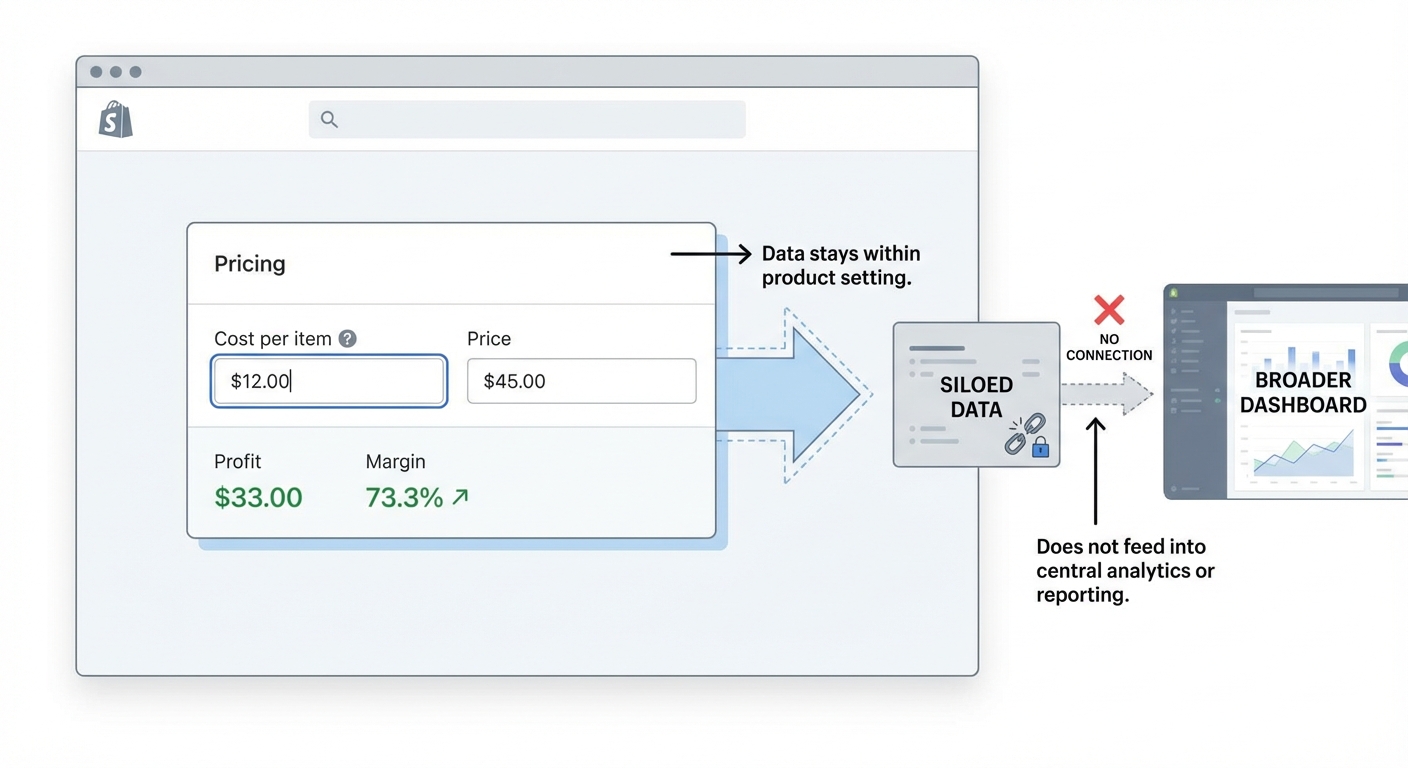
You can see total sales. You can see units sold. But Shopify has no built-in cost-of-goods field that flows through to reporting in a meaningful way. There is a "Cost per item" field in the product editor, but it's used primarily to calculate inventory value — it doesn't feed into a profit dashboard or appear in standard Shopify reports unless you're on an Advanced or Plus plan, and even then, the reporting is limited.
According to Shopify's own documentation, the cost per item field helps calculate profit in reports, but this only shows up in specific analytics views and doesn't account for shipping costs, transaction fees, or ad spend — which means it's gross profit at best, and that's if your costs are entered correctly to begin with.
Most merchants either skip the cost field entirely or fill it in once and never update it when supplier prices change.
The real cost of inaccurate COGS data
Let's put numbers on this, because it's not abstract.
Say you run a store doing $80,000/month in revenue. Your average order value is $60, so that's roughly 1,333 orders per month. You think your product costs average $15 per unit.
But your actual costs — after accounting for supplier price increases, seasonal packaging upgrades, and the expedited shipping you paid on your last three restocks — are closer to $20 per unit.
That $5 difference, across 1,333 orders, is $6,665/month in unaccounted cost. At the end of the year, you've miscalculated your profit by over $80,000. That's not a rounding error. That's the difference between thinking you had a great year and actually figuring out why your bank account doesn't match.
Accurate Shopify COGS tracking isn't a nice-to-have. It's the foundation of every profitable decision you make — pricing, ad budgets, which products to scale, which to cut.
Track this automatically
Shopimize shows your real profit per order, per product, per channel.
Try Shopimize free →How to add COGS in Shopify: step by step
Here's the most direct approach for merchants who want to get started today.
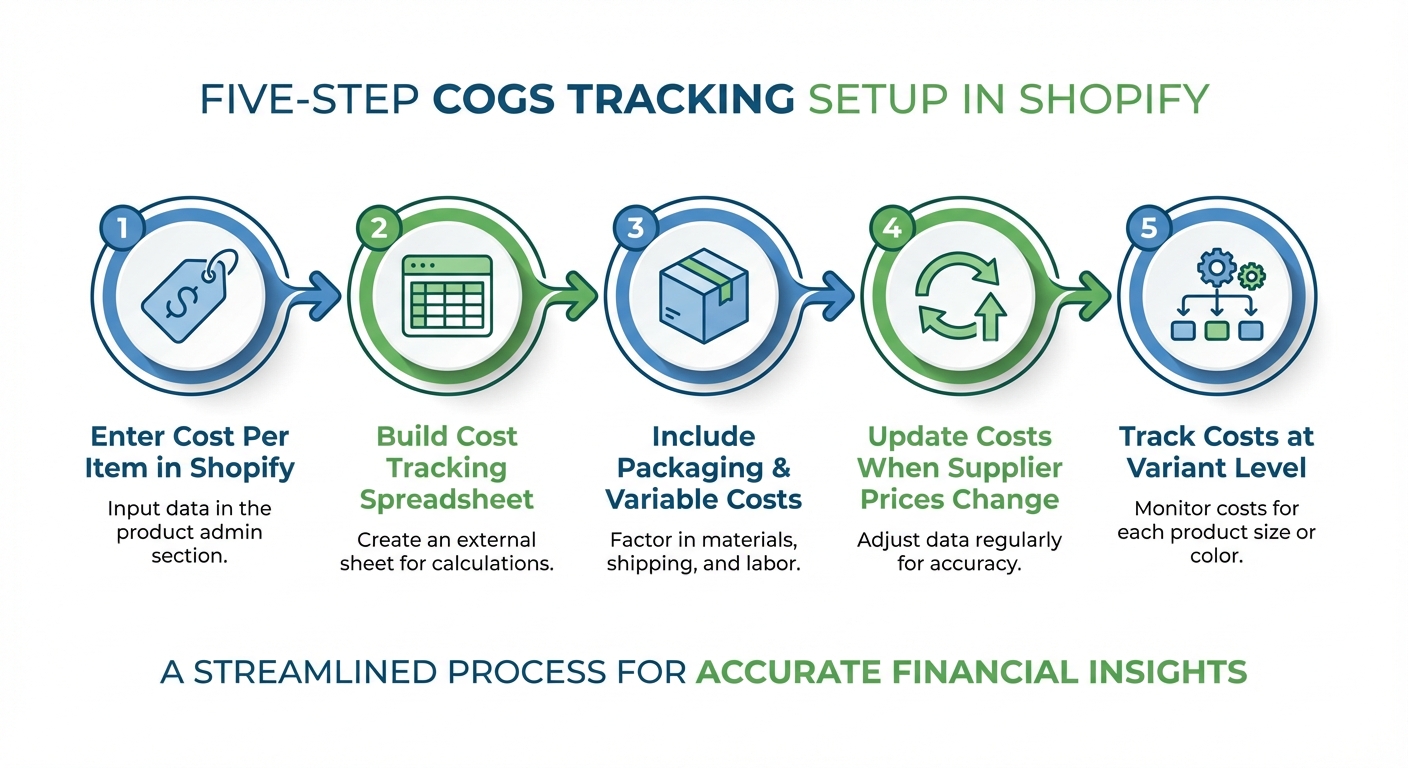
Step 1: Enter cost per item for every product
In your Shopify admin, go to Products → select a product → scroll to the Pricing section → enter the value in the Cost per item field.
Do this for every active product and every variant. If you have 10 variants of a hoodie at different costs, each one needs its own entry.
Be realistic about what "cost" means here. For most merchants, the right number to use is the landed cost: what you paid your supplier plus any inbound freight per unit. If you paid $2,000 for 200 units and $150 in freight, your landed cost per unit is ($2,000 + $150) ÷ 200 = $10.75, not $10.
Step 2: Set up a COGS tracking spreadsheet as a backup
Shopify's cost field is better than nothing, but it has no history. When you update a cost, the old number is gone. If your supplier raised prices six months ago and you updated the field, you have no record of what the cost was before.
Keep a simple spreadsheet — even a Google Sheet — that logs:
- Product name and SKU
- Supplier
- Cost per unit
- Date the cost was set
- Notes (e.g., "includes packaging," "expedited freight")
This takes 20 minutes to set up and saves hours of confusion during tax season or when a supplier dispute comes up.
Step 3: Factor in packaging and variable costs
A lot of merchants forget that their product cost isn't just what they pay the supplier. If you're adding custom tissue paper, branded boxes, or thank-you cards, those have a cost per order too.
Say your branded packaging runs $1.50 per shipment. Across 1,333 orders, that's $2,000/month. Not huge — but it's real cost that should live somewhere in your COGS or at least your cost-per-order calculation.
Decide upfront whether you're including packaging in COGS or tracking it separately as a fulfillment cost. Just be consistent.
Step 4: Update costs when supplier prices change
This is where most merchants fall behind. They enter costs diligently at launch, then a supplier raises prices 10% and the Shopify field never gets updated.
Set a calendar reminder — quarterly at minimum, monthly if you're in a volatile category or running a dropshipping store — to review your cost per item fields and reconcile against recent purchase orders. This is a 30-minute task that has a direct effect on how accurate your margin data is.
Step 5: Track COGS at the variant level, not just the product level
If you sell one product in three colors and two sizes, your cost might differ across variants — especially if different colorways require different dye costs or if a larger size uses more material. Shopify lets you set cost at the variant level, and you should use that.
Lumping all variants under one average cost hides margin differences. Your black version might have a $2 higher cost than your white version due to dye process. Small difference, but multiply it across your best-selling SKU and it adds up.
Where native Shopify COGS tracking falls short
Once you've done everything above, your cost data in Shopify will be more accurate than 80% of stores. But there are still real gaps in what Shopify shows you.
No profit per order view. Shopify doesn't show you a running profit number per order that accounts for COGS, shipping cost, and Shopify transaction fees all at once.
No ad spend attribution. If you spent $12 to acquire that $45 order through a Facebook ad, your true profit on that order isn't $33 — it's $33 minus shipping ($6) minus Shopify fee (~$1.35 on Basic plan) minus your $12 ad spend. That's closer to $13.65. Shopify has no way to show you that number.
No margin trends by product. You can't easily see which of your products is becoming less profitable over time as COGS creep up, unless you're doing it manually.
No returns reconciliation. When an order is returned and refunded, your revenue goes down — but your COGS tracking needs to account for whether that product went back into sellable inventory or was discarded.
These aren't criticisms of Shopify — it's a platform built to sell things, not to be a profit analytics tool. But if you're serious about understanding your profitability, native Shopify COGS tracking only gets you halfway there.
What a real Shopify profit dashboard looks like
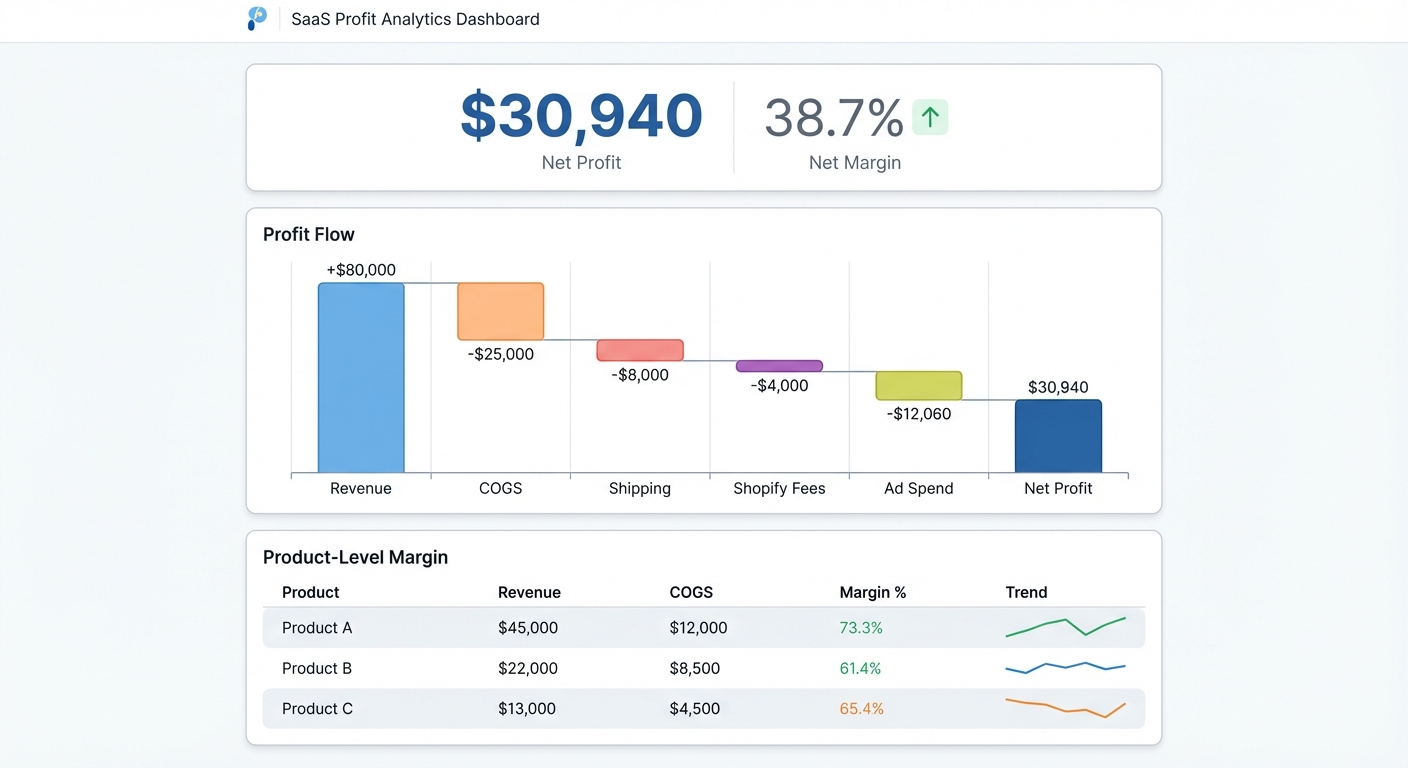
Here's what accurate COGS tracking should power: a view where you can see, for any time period, exactly how revenue breaks down into actual profit.
Something like this:
| Amount | |
|---|---|
| Revenue | $80,000 |
| − COGS | $26,660 |
| − Shipping costs | $8,000 |
| − Shopify fees | $2,400 |
| − Ad spend | $12,000 |
| = Net profit | $30,940 |
| Net margin | 38.7% |
That's the number that matters. Not $80,000. Not even $53,340 gross profit. The $30,940 after everything comes out.
And then, ideally, you'd be able to break that down by product — so you can see that your best-selling item has a 42% net margin while another product you're actively promoting is running at 11% because ad costs are eating it alive.
You can plug your own numbers into our free profit calculator to see how your COGS, fees, and ad spend affect your real bottom line.
The fastest way to get accurate COGS into your profit view
Getting COGS data into Shopify accurately is step one. But to actually use it — to make decisions based on real profit numbers — you need something that pulls it all together.
Shopimize connects directly to your Shopify store and layers your COGS data on top of your actual order data, shipping costs, and Shopify fees in real time. Instead of opening three tabs and doing math in a spreadsheet, you see your true profit number updated automatically.
When you update a product's cost in Shopify, it flows through. When you run a sale and margins compress, you see it immediately. When a product's profitability shifts because ad costs increased, the dashboard reflects that — not in your end-of-month accounting review, but as it happens.
It's the difference between knowing your revenue and actually knowing your business.
Shopify COGS tracking: the key takeaway
Revenue is easy to track. Shopify does that automatically and presents it beautifully. But Shopify COGS tracking — the work of recording what your products actually cost and keeping that data accurate — is what separates merchants who know their margins from merchants who are guessing.
The steps aren't complicated: enter accurate costs at the variant level, include landed costs and packaging, update costs when they change, and keep a backup log. Do those four things consistently and your COGS data will be solid. Then connect it to a tool that brings in the rest of the picture — fees, shipping, ad spend — so the profit number you see every morning is actually real.
Shopimize is built for exactly that. If you want to stop guessing and start knowing, it takes about five minutes to connect your store.
Frequently asked questions
Does Shopify track COGS automatically?
Shopify does not track COGS automatically. It has a "Cost per item" field in the product editor that you fill in manually, and this data appears in some analytics reports on Advanced and Plus plans. But it doesn't account for shipping costs, transaction fees, ad spend, or packaging — so it gives you an incomplete picture of true profit.
What should I include in my Shopify COGS?
At minimum, include the unit cost you pay your supplier. For a more accurate number, use your landed cost: supplier cost plus any inbound shipping or freight divided by units received. You can also include direct packaging costs if they vary by product. Operating expenses like rent, salaries, or platform subscriptions are typically tracked separately as overhead.
How often should I update COGS in Shopify?
Review your cost per item fields at least every quarter — or any time you receive a new purchase order at a different price. Supplier costs change, and if your COGS data is six months out of date, your margin calculations will be off. Set a recurring calendar reminder so it doesn't fall through the cracks.
What's the difference between gross profit and net profit on Shopify?
Gross profit is revenue minus COGS. Net profit takes gross profit and subtracts all other costs: shipping, Shopify transaction fees, app subscriptions, ad spend, and any other operating expenses. Shopify can give you a rough gross profit figure if your cost fields are filled in, but calculating net profit requires pulling in data from multiple sources — which is what a dedicated profit analytics tool is built to do.