
How to Add COGS in Shopify So Your Profit Numbers Are Real
Here's something most new Shopify store owners figure out the hard way: Shopify will tell you your revenue, your order volume, and your average order value. What it won't tell you — at least not without some setup — is whether any of that revenue is actually making you money.
That gap comes down to cost of goods sold (COGS). Without it, your profit numbers are essentially made up. You're looking at revenue and calling it success. And if you've ever wondered why you're moving product but your bank account doesn't feel like it, this is probably part of the answer.
This article walks through how to add COGS in Shopify, why the built-in method falls short for most merchants, and what you can do to see profit numbers you can actually trust.
What is COGS — and why does it matter?
Cost of goods sold (COGS) is the total cost of producing or purchasing the products you sell. That includes the price you paid your supplier, manufacturing costs, and any materials that go directly into making the product.
It does not include your Shopify subscription, your ad spend, or your shipping fees — those are operating expenses (OpEx). COGS is just the direct cost of the goods themselves.
Why does it matter? Because without COGS, you can't calculate gross profit. And without gross profit, you have no idea how much money you actually have left over to pay for everything else — your ads, your apps, your team, your own salary. A store doing $80,000 a month in revenue could have $20,000 in gross profit or $60,000 in gross profit. Those two businesses look identical from the top line and require completely different decisions.
How Shopify handles COGS (and where it stops)
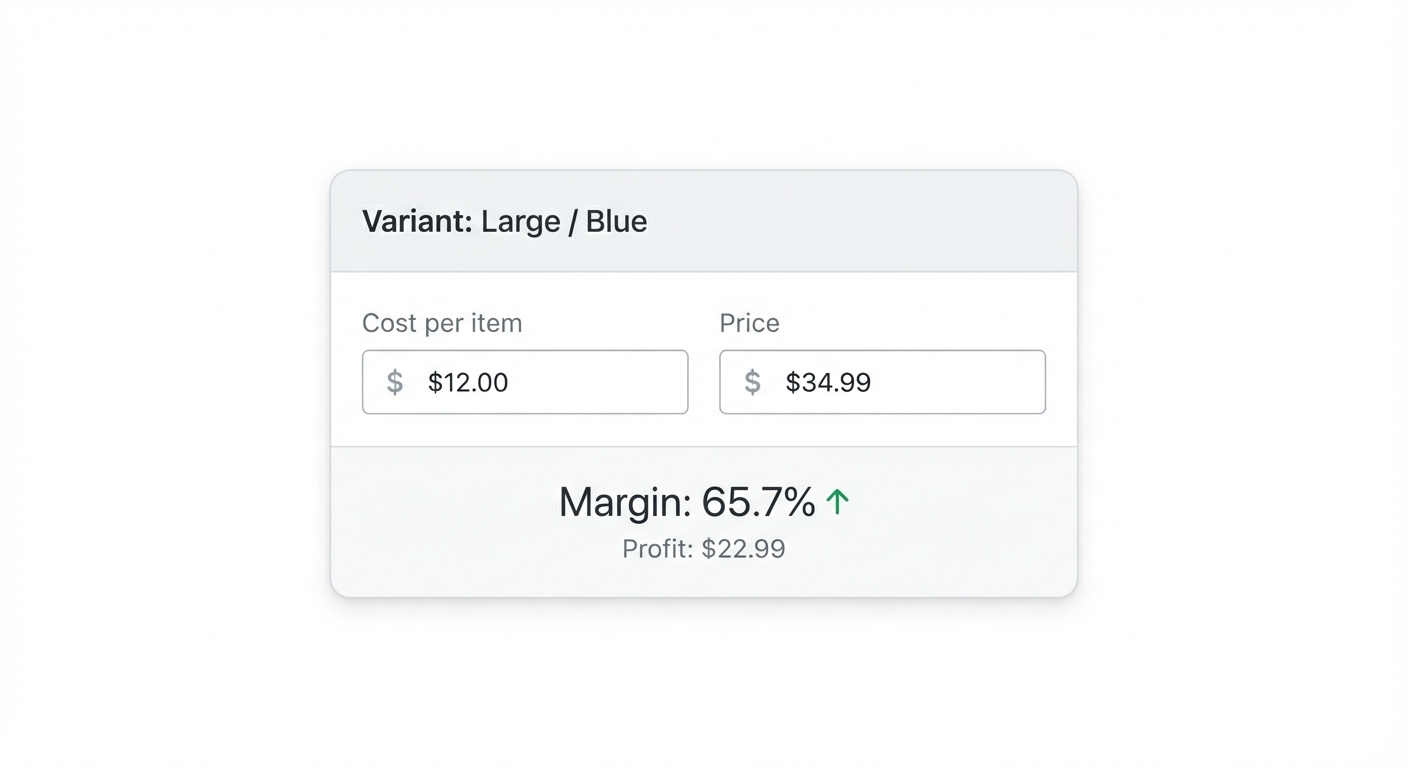
Shopify does have a native COGS field. For each product variant, you can enter a "Cost per item" in the product settings. Once you've done that, Shopify uses it in two places: the Inventory report and the Profit report in Shopify Analytics.
That part is genuinely useful. The problem is what Shopify's profit report does and doesn't account for.
Shopify calculates profit as:
Revenue – COGS = Gross Profit
That's gross profit, not net profit. Shopify's report doesn't deduct:
- Shopify Payments processing fees (typically 2.6% + 30¢ per transaction for the Basic plan)
- Transaction fees if you're on a non-Shopify Payments processor
- Shopify subscription costs
- Shipping costs you've paid to fulfill orders
- App subscription fees
- Refunds and returns
- Ad spend from Meta, Google, or TikTok
So you could have a Shopify Profit report showing $18,000 in monthly gross profit, while your actual net profit — after all those deductions — is closer to $4,000. We've seen it happen. The number looks great on a Monday morning and then vanishes by the time you reconcile everything.
How to add COGS in Shopify: the step-by-step method
Let's do the actual setup. Here's how to add cost per item to your products in Shopify.
Step 1: Go to your product in Shopify admin
In your Shopify admin, click Products in the left sidebar, then select the product you want to update.
Step 2: Scroll to the Variants section
If your product has variants (sizes, colors, etc.), you'll need to add COGS to each variant individually. Click into a specific variant to open its settings.
Step 3: Find the "Cost per item" field
In the variant detail page, look for the Pricing section. You'll see your selling price at the top, and just below it, a field labeled Cost per item. This is where you enter your COGS.
Step 4: Enter your cost
Enter what you actually paid for that unit — the landed cost, if you can. That means including not just the product price from your supplier, but also any shipping from manufacturer to you, customs fees, or per-unit packaging costs. If you're buying a product for $9 with $1 in freight allocated per unit, your real COGS is $10, not $9.
Step 5: Save and repeat
Hit Save. Then repeat for every other variant and product. Yes, this is tedious for a large catalog. We'll come back to that.
Step 6: Check your Profit report
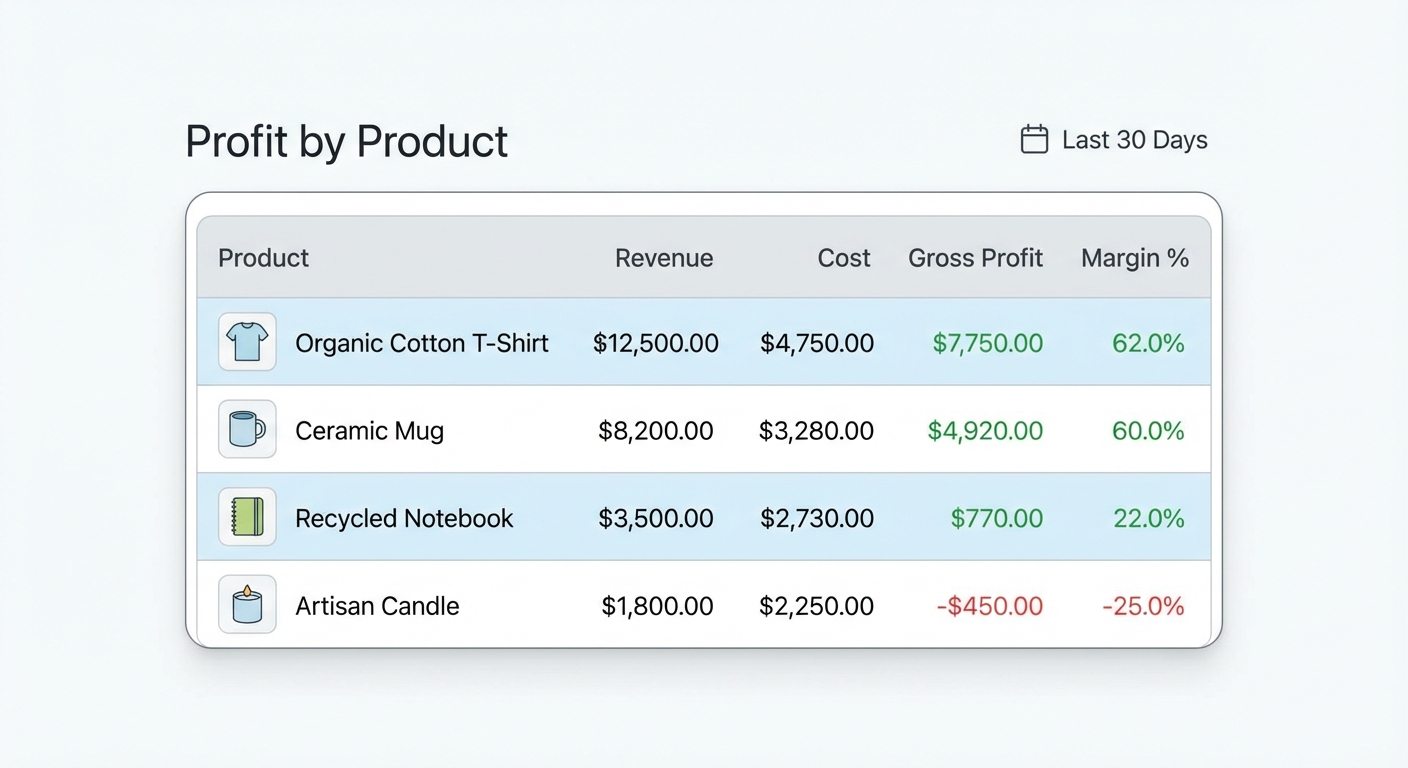
Once COGS is entered, go to Analytics → Reports → Finances → Profit. You'll see a gross profit figure per product and in aggregate. Shopify also shows margin percentage here, which is helpful for spotting your least-profitable products at a glance.
That's the basic process. Shopify's official documentation on profit reports covers the technical details if you want to go deeper.
Track this automatically
Shopimize shows your real profit per order, per product, per channel.
Try Shopimize free →The part Shopify doesn't solve: bulk COGS and real-time accuracy
Here's where the friction starts for most merchants.
Problem one: entering COGS at scale is painful. If you have 50 SKUs, that's 50 manual entries. If you have 300 SKUs with multiple variants each, you're looking at a significant time investment — and most merchants never finish it. That means some products have COGS entered and some don't, which makes your aggregate numbers unreliable.
Problem two: COGS changes. Your supplier raises prices. You switch manufacturers. You start sourcing from a different country. Every time that happens, your COGS entries are out of date, and Shopify has no way to flag that or alert you. Your reports quietly become wrong.
Problem three: Shopify's COGS doesn't include everything you should be counting. Most merchants have costs beyond pure product cost: custom packaging, inserts, kitting labor. Some of that legitimately belongs in COGS. Shopify's single-field approach doesn't accommodate that nuance.
The result: a lot of Shopify merchants have COGS data that's partially filled in, potentially stale, and reflecting only one piece of their true cost structure.
Why gross profit isn't the number you should be managing
This is worth slowing down on.
Gross profit — the number Shopify's report shows you — tells you how much money is left after you pay for your goods. But your business doesn't run on gross profit. It runs on net profit: what's left after every cost.
Let's work through a real example.
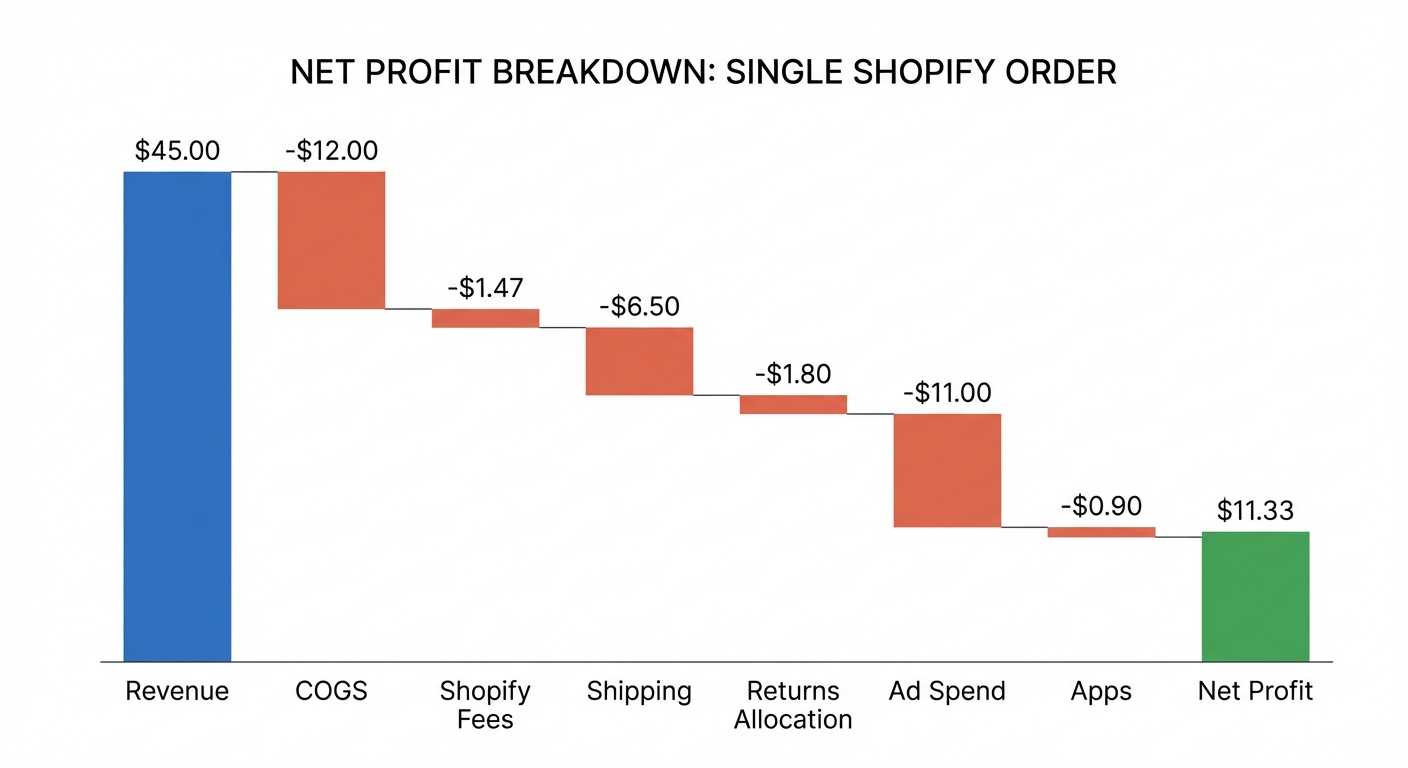
Say you sell a product for $45. Your COGS is $12. Your gross profit is $33, and your gross margin is about 73%. That looks excellent.
But then the real costs hit:
- Shopify Payments fee: $1.47 (2.6% + $0.30)
- Shipping to customer: $6.50
- Returns/refund allocation: $1.80 (assuming a 4% return rate)
- Allocated ad spend to acquire that customer: $11.00
- Shopify app costs per order: $0.90
Total additional costs: $21.67
Your actual net profit on that $45 sale is $11.33 — a net margin of 25%, not 73%.
That's not a disaster. But it's a very different business than the gross margin suggested. And if your ad spend crept up to $18 without you noticing — which happens — you're now making $4.33 per order. Grow that business to $80k/month and you're working incredibly hard for almost nothing.
You can run these numbers yourself with our free profit calculator — plug in your product cost, fees, and ad spend to see what you're actually keeping.
What COGS tracking actually needs to look like
Getting COGS right in Shopify is step one. But the merchants who actually run profitable stores go a step further — they track net profit at the order level, not just gross profit at the product level.
That means pulling together:
- Product COGS (what you paid for the goods)
- Shopify Payments / transaction fees (per order, based on your plan and payment method)
- Shipping costs (actual fulfillment cost, not what you charged the customer)
- Refunds and returns (properly deducted when they happen, not ignored)
- Marketing spend (attributing customer acquisition cost per order or per product)
- App and subscription costs (often overlooked, but real)
No native Shopify report combines all six of these. That's not a knock on Shopify — analytics isn't their core product. But it does mean merchants who rely solely on Shopify's reporting are making decisions on incomplete data.
How Shopimize fills the gap
Shopimize connects to your Shopify store and pulls in your COGS data — including what you've already entered in Shopify's "Cost per item" fields. But it goes further.
You can set your COGS directly inside Shopimize if you haven't completed Shopify's native fields, or override product costs to reflect your actual landed costs. Then Shopimize layers on top of that:
- Shopify Payments fees — calculated automatically per order based on your plan
- Shipping costs — pulled from your fulfillment data
- Refunds and returns — deducted in real time as they happen
- Ad spend — connected via your Meta and Google Ads accounts
The result is a profit number that reflects your actual business — not just revenue minus supplier invoices.
For merchants who've only ever looked at Shopify's gross profit report, seeing their real net profit for the first time is often a wake-up call. Sometimes a good one (you're more profitable than you thought). Sometimes a hard one (you're not). Either way, you're working with real numbers.
The verdict on Shopify's native COGS
Shopify's "Cost per item" field is worth using. Set it up, keep it accurate, and check the Profit report regularly. It takes maybe an hour to do properly for a small catalog and will immediately improve how you understand your product margins.
But know its limits. It's a gross profit tool, not a net profit tool. It won't account for your fees, your shipping costs, or your ad spend. And if you're running any meaningful ad budget, those costs will completely change the picture.
For merchants serious about tracking real Shopify profit — and making decisions based on it — you need a layer that brings everything together. That's what Shopimize is built for.
Frequently asked questions
Does Shopify automatically calculate profit?
Shopify can calculate gross profit once you've entered a cost per item for each product variant. This shows up in the Profit report under Analytics. However, Shopify doesn't automatically factor in transaction fees, shipping costs, ad spend, or refunds — so the number it shows is gross profit, not your actual net profit.
What's the difference between COGS and operating expenses?
COGS (cost of goods sold) is the direct cost of producing or purchasing what you sell — supplier costs, manufacturing, direct materials. Operating expenses are everything else that keeps your business running: advertising, software subscriptions, salaries, shipping fees. Both eat into your profit, but they're accounted for separately, and the distinction matters for how you analyze your margins.
Can I bulk upload COGS to Shopify?
Yes, with limits. You can use Shopify's product CSV import/export to update the "Cost" column across many products at once without editing each one manually. Download your product export from the Shopify admin, fill in the Cost column in the spreadsheet, and reimport. For large catalogs with frequent supplier price changes, tools like Shopimize let you manage and update your COGS centrally and in real time.
Why is my Shopify profit report higher than my actual bank balance?
Almost certainly because Shopify's profit report only subtracts COGS from revenue. It doesn't deduct Shopify Payments fees, shipping costs you paid to fulfill orders, returns, app subscriptions, or marketing spend. All of those come out of your actual bank account but don't appear in Shopify's native profit number. This gap is exactly why tracking true net profit — not just gross profit — is critical.